 DiscipleMakers HQ
The Xbox One S is our disc player in Conference Room 135. It can play:
- Ultra HD 4K HDR Blu-Ray discs
- Blu-Ray discs
- DVDs
- CDs
Instructions
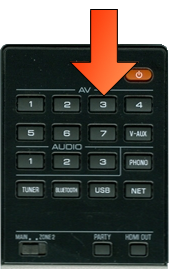
Select input 3 on the receiver by pressing AV button 3 on the receiver remote.
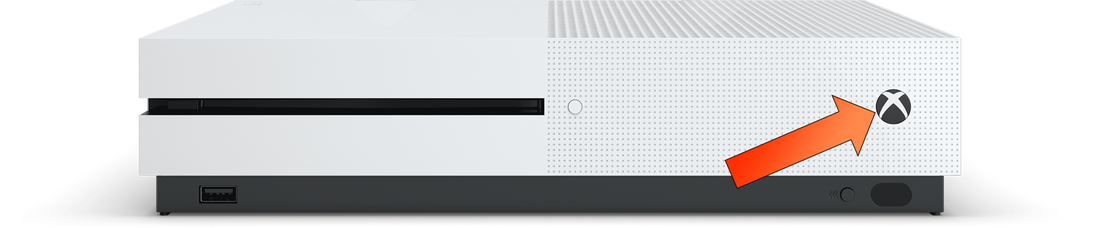
Turn on the Xbox One by pressing the X button on a controller or the Xbox itself.
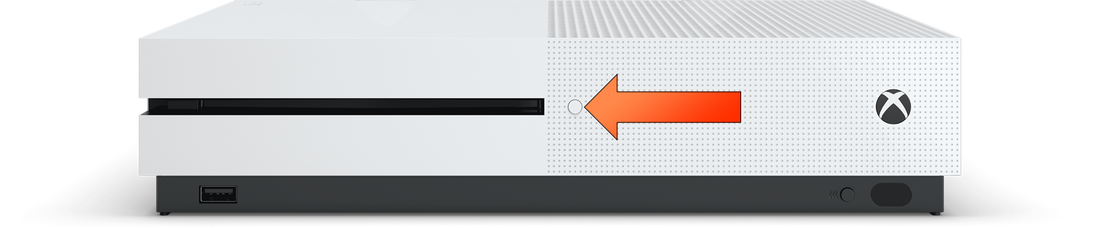
Press the Eject button on the front of the Xbox One to remove any disc that may already be inserted.
Insert a disc with the label facing up in the disc slot.
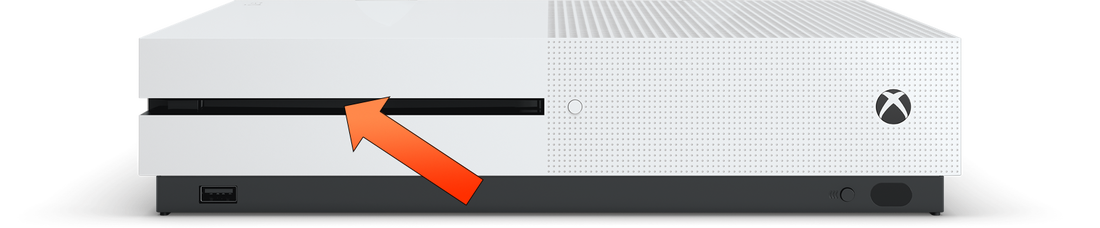
The disc will probably play automatically. If not, run the Blu-Ray Player app on the Xbox One for video discs or the Audio CD Player app for audio CDs.
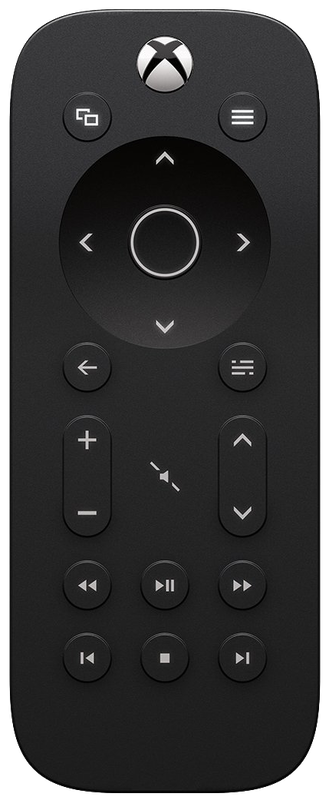
The easiest way to control a video disc is using the Xbox Media Remote, though you can also use a game controller. For audio CDs, your best bet is a game controller.
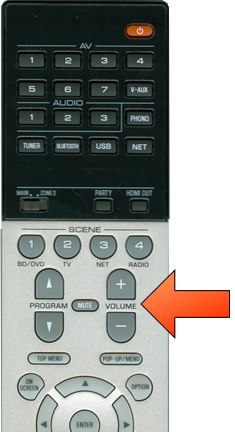
Adjust the sound volume as needed using the Receiver remote (switch must be on Main).
If the TV display goes blank, the Xbox and display may just be syncing up with each other. Just wait 5-10 seconds and the desired image should reappear. If the screen stays blank for longer than 10 seconds and sound keeps playing, the Xbox and display have lost video sync with each other. 🙁 At that point your best bet is to turn off the Xbox and then turn it back on using the power button on the Xbox itself and then try again to play your disc.
You can display the same thing on both screens, or display something else on the other screen.
You can change the sound mode in order to produce a more roomy or realistic effect.
When you're done:
Remove the disc using the Eject button on the front of the Xbox.
Turn off the Xbox by holding down the X button on a controller or pressing the X button on the front of the Xbox.